DSP Configurator has two operational modes: Emulate mode and Live mode. Emulate mode allows you to work offline from the device and save your work to disk. Connect to the device in Live mode to load your file onto the device or to make changes to your configuration in real time.
There are two methods of synchronizing the device with the DSP Configurator file when you enter Live mode: push data or pull data. Both are described in step 5 of the Emulate Mode to Live Mode subsection below. See the Operational Modes subsection of "DSP Configurator Workflow" for a description of the normal workflow.
When you perform a synchronization using the Pull Data method, preset data remains on the device, and only the list of preset names is pulled from the device. Presets in this state are marked with an asterisk (see the "Presets" section in the DMP 64 book, DMP 128 book, DMP 44 LC book, MPX Plus 866 A book, or MLS 608 D Series book depending on device), until the preset is recalled or a backup is performed (see the "Backup" section in the DMP 64 book, DMP 44 LC book, MPX Plus 866 A book, or MLS 608 D Series book depending on device).
NOTE: For the MPX Plus 866 A, if you intend to save presets to the device while in Live mode, see the DSP Usage section in the MPX Plus 866 A book for more information.
To go from Emulate mode to Live mode:
When the application is in Emulate mode, click the Live button or press <F6> on your keyboard. A dialog box opens with a tab for each connection method. Connection options include RS-232, TCP/IP (for the MPX Plus 866 A and DMP 64 only), and USB (for the DMP 64, DMP 44 LC, MLS 608 D Series, and
MVC 121 Plus only).
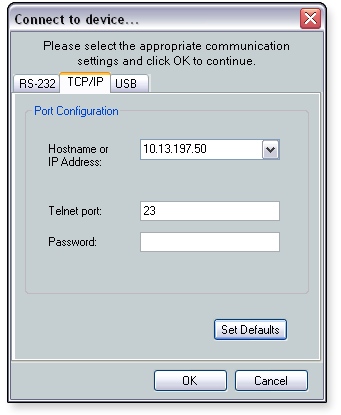
Click OK. The Synchronize with Device dialog box opens.

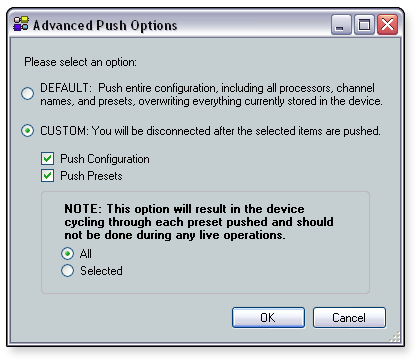
Push the data from this configuration to device, overwriting any data currently in it — This method uploads DSP Configurator settings to the device and overwrites the device settings. Selecting this option enables the Advanced button, which opens the Advanced Push Options dialog box with the following options:
NOTE: The Advanced button and advanced push options are not available for the MVC 121 Plus.
In the Synchronize with Device dialog box, click OK. If a proper connection to the device is not established and the device cannot be found, an error message appears and indicates that the application cannot connect to the device.
When a connection is established, the selected operation is performed, if you selected Custom > Push Presets > Selected, a dialog box opens allowing you to select the presets to push to the device.
If you selected the pull data method and the file you are working from has unsaved information, a dialog box opens asking whether to save the settings before connecting to the device. Click Yes to save the file or click No to continue without saving. Clicking Yes opens the Save dialog box.
To go from Live mode to Emulate mode:
While in Live mode, the Open function on the File menu is not available and a file may not be opened from disk. The New function on the File menu is not available, as well. Conversely, a file can be saved while the application is in Live mode. Only presets that are already part of the file or presets that are created while in Live mode will be saved with the file. Presets that exist only on the device will not be saved with the file.
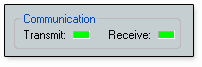
In Live mode only, transmit and receive communication indicators are displayed in the lower right corner of the open workspace. These indicators light green to indicate that information is being transmitted to and received from the device.