Creating a Display Disconnection Email

Global Configurator's monitoring feature enables you to configure IP Link devices to monitor many parameters of their connected audio/visual devices. This feature can be used to monitor a display connection and send an alert email to the administrator if a display is unexpectedly disconnected from the network.

Note: The display port of a System 5 IP is shown as an example. However, the monitoring function is available for use with many other IP Link and audio/visual devices.

To create a display disconnection email alert:

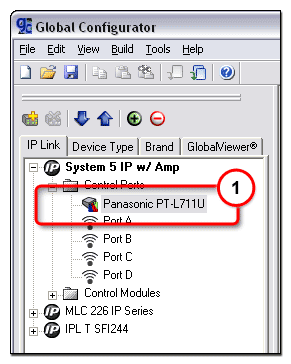
  1. Select a Display Port in the IP Link Tree window.

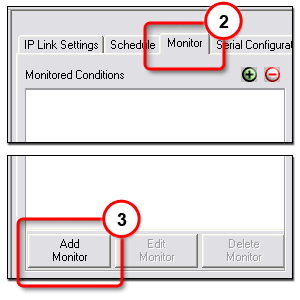
  1. Click the Monitor tab.

  2. Click the Add Monitor button.

  3. The Monitored Conditions Wizard dialog box opens (see below).


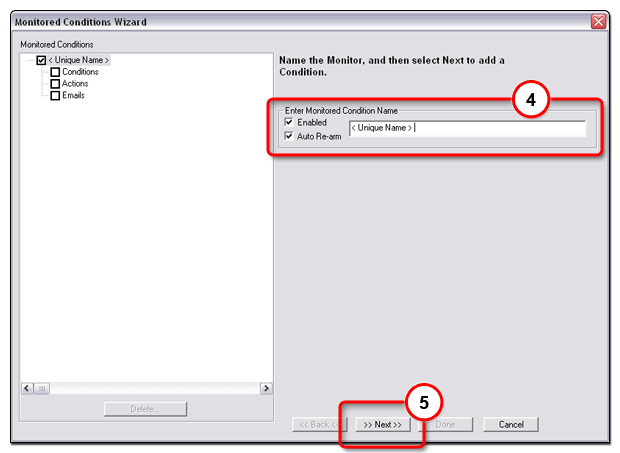
  1. Enter a unique name in the Monitored Condition Name field.

  2. Click Next.

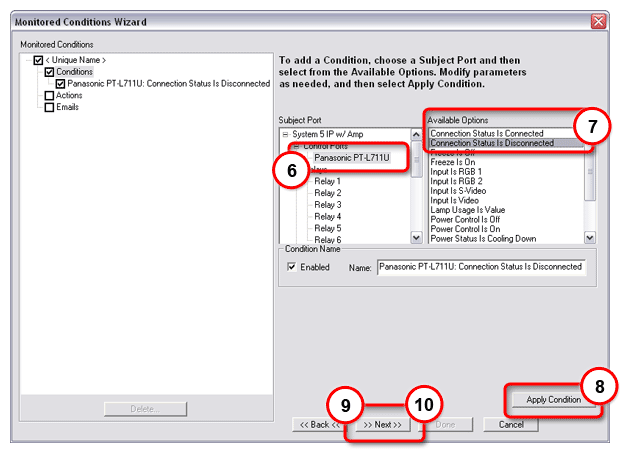
  1. Select a Subject Port (device).

  2. Select Available Options > Connection Status Is Disconnected.

  3. Click Apply Condition.

  4. Click Next.

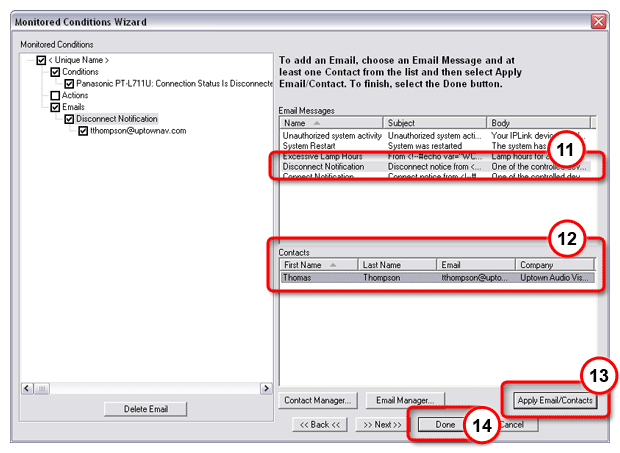
  5. Click Next a second time to add an email notification.

  1. Select Email Messages > Disconnect Notification.

  2. Select the desired Contacts.

  3. Click Apply Email / Contacts.

  4. Click Done.

Note: You may use the Contact Manager... and Email Manager...  buttons to create email contacts
and custom emails.